

MyNissan App: Everything You Need to Know

The MyNISSAN App at a Glance
- MyNISSAN is a free Nissan service app.
- Every 2026 Nissan model is compatible with the MyNISSAN app.
- The MyNISSAN app was created for Nissan vehicles manufactured in 2014 or later, but some features are available to older Nissan models and discontinued Nissan vehicles, too.
- You can download MyNISSAN app updates for Android and Apple® devices.
- Some Nissan services within MyNISSAN, like the NissanConnect app for Android and Apple® devices, are subscription-based.
- The MyNISSAN app has vehicle-specific capabilities – some features vary by model and trim level.
The MyNISSAN App: Digital Solutions for Apple® and Android Users
The MyNISSAN app is a free Nissan service app that gives drivers easy access to vehicle information on their smartphones. If you're wondering how to pair your Nissan Altima app or need details on Nissan app remote start options, you're in the right place. Join Lorenzo Nissan Ft. Lauderdale as we explore MyNISSAN app features and benefits, discover MyNISSAN-app-compatible vehicles, discuss other official Nissan platforms, and address MyNISSAN app troubleshooting.
MyNISSAN App Explained
MyNISSAN App Features and Benefits
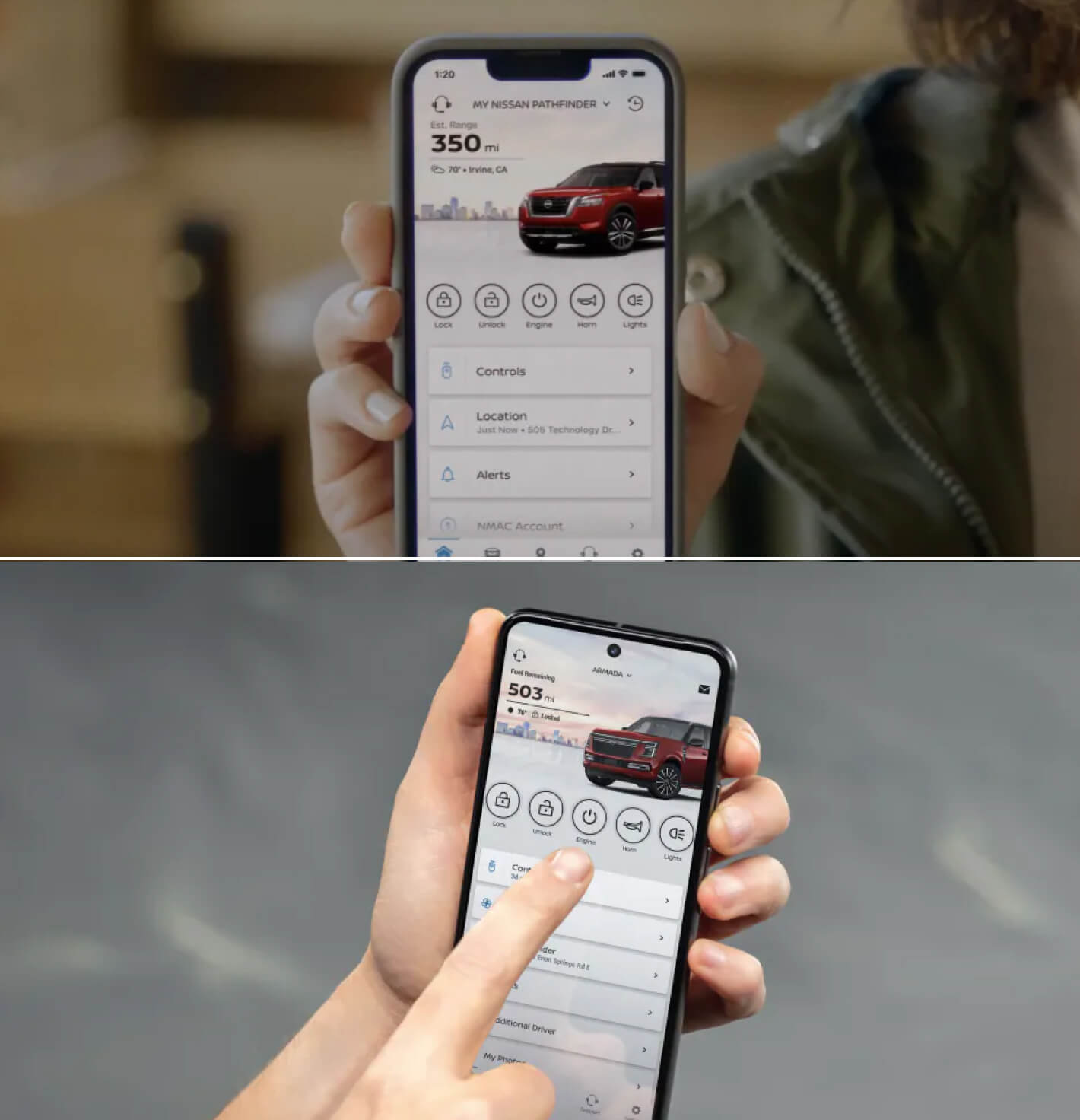
Not all features are available for every model and trim, but here's an overview of the benefits you can gain when you install the MyNISSAN app after taking any Nissan model home.
- Device and Platform Compatibility: The MyNISSAN app facilitates integration with smart technologies from both Apple® and Android devices.
- Personalization and User Experience: Some models and trims allow for up to four driver profiles to be set up in the app to accommodate families with multiple drivers.
- Accessibility and Usability Features: Controls, like volume, brightness, and settings, are easily accessible from the app's home screen.
- Subscription vs. Free Features: MyNISSAN is free to download and use, though other services within the MyNISSAN app do require a subscription, like access to roadside assistance or trip planning.
- Integration with NissanConnect Services: You can access NissanConnect and NissanConnect EV from inside the MyNISSAN app. That includes premium elements like SiriusXM® radio.
- Updates, Alerts, and Notifications: The app provides vehicle health reports, which include tire and oil pressure, brakes, malfunction alerts, model recalls, and more. Depending on its condition, you can freely book a service appointment with a local dealership.
- Environmental and Efficiency Benefits: Monitor your engine performance and battery life directly from the app to increase efficiency and decrease environmental impact.
- Privacy and Data Security: Manage privacy settings within the app and opt out of sharing certain data types by adjusting your location settings.
- Engine Start and Stop: For equipped models, you can remotely start your vehicle and set up climate control options through the MyNISSAN app. You can also receive safety alerts even after your vehicle is turned off. For example, you'll receive notice if your windows cracked while the Nissan vehicle is off.
- Roadside Assistance: Get immediate access to your roadside assistance coverage with the push of a button. An operator will speak with you as soon as possible and send a team to your location as soon as possible.
Other Official Nissan Apps for Your Vehicle
Not only does the automaker offer the MyNISSAN app with all the features and benefits listed above, but users can also find other official Nissan applications for Apple® and Android devices to assist with managing loan or lease payments, monitoring electric Nissan models, and staying up-to-date with the latest Nissan news. Some available apps to download include:
- NissanConnect: This Nissan Bluetooth® app is also a Nissan navigation app with Google built-in services, voice recognition, and emergency response. It can even function as a "Nissan find-my-car app" if your model is ever stolen.
- NissanConnect EV: For all-electric models, NissanConnect EV services let you check your EV's battery, driving range, charging status, and more.
- NMAC Account Manager: This app was built for simple Nissan finance tools integration. If you have loan or lease payments for your Nissan vehicle, download the NMAC app to manage your account, make payments, view contract details, and set alerts.
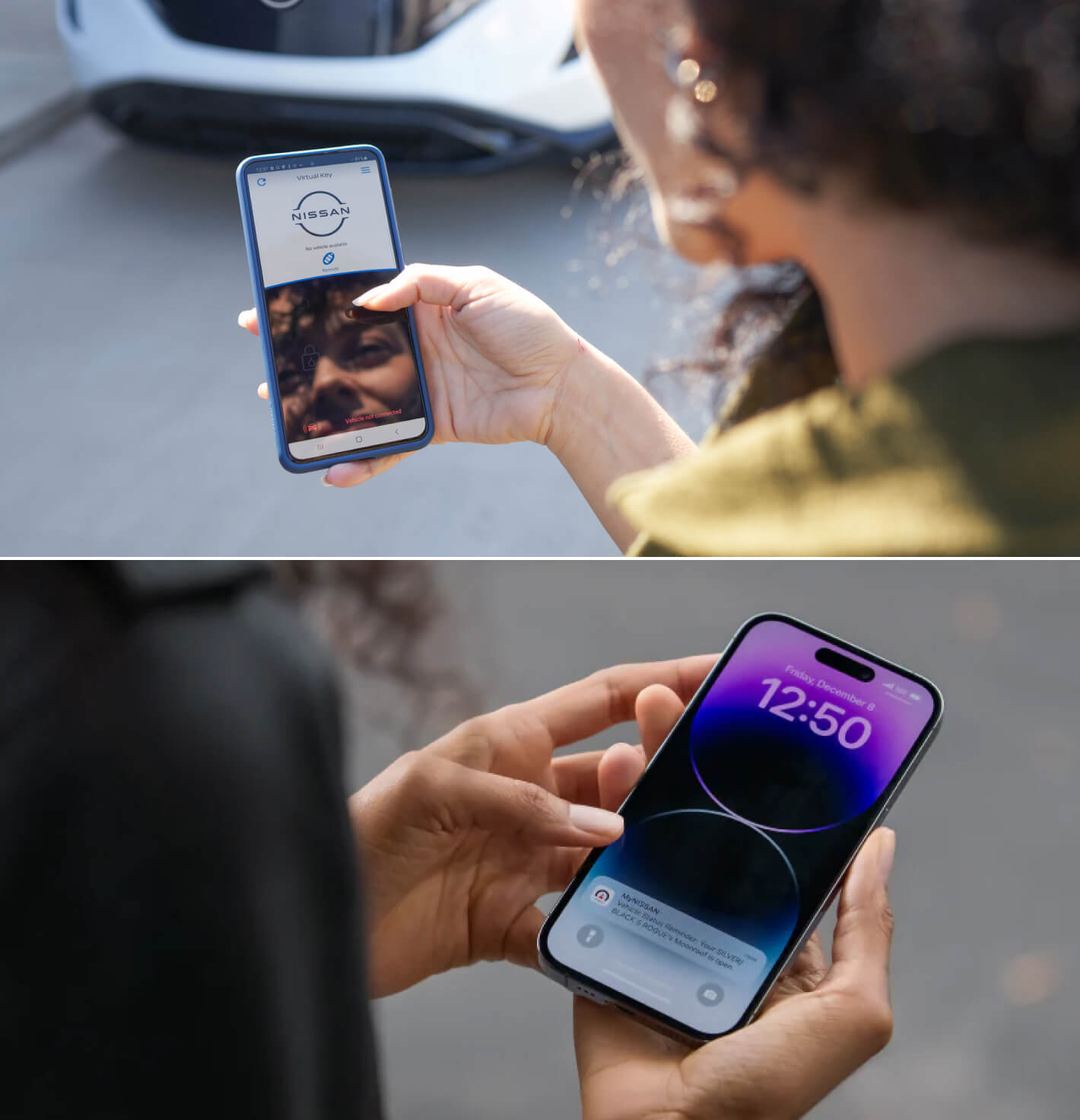
- Nissan Virtual Key: The Virtual Key app is your answer to every Google search that starts with "Nissan app to unlock car."
- Door to Door Navigation: Enjoy a more detailed Nissan navigation app with Door to Door, which offers turn-by-turn directions.
- ONE Nissan: Enjoy the latest Nissan news, product updates, and general information.
There is no Nissan key finder app, but many drivers use AirTags or similar products to locate keys around the house. User testimonials and use cases vary for the apps listed above. Some drivers love the simplicity of having their vehicle's information so accessible, while others don't prefer to use digital monitoring for their model's finances or charging status.
However, even without these additional apps, the MyNISSAN app can provide excellent convenience functionality, like scheduling an appointment with our Ft. Lauderdale Nissan service department, connecting to your phone through Bluetooth®, accessing Siri® eyes-free services, and so much more.

Which Vehicles Pair With MyNISSAN Apps?
All new Nissan vehicles for sale pair with the MyNISSAN app and NissanConnect, though regional and global availability may vary slightly depending on your location. For example, 2026 Nissan Rogue apps include MyNISSAN and NissanConnect, which give you remote engine start and stop with climate control, among other features.
Many older-model Nissan vehicles and even some discontinued variants can connect to the MyNISSAN app, too. Check the chart below to find the compatible vehicles for various Nissan apps, such as MyNISSAN and NissanConnect – we've focused on the most popular platforms and included discontinued models for your convenience.
MyNISSAN App Compatibility Table
| MyNISSAN / NissanConnect / NMAC Account Manager | NissanConnect EV Services | |
| Paired Models |
|
|
While the above chart will help you figure out service history, roadside assistance, and vehicle health reports, some models may require additional packages to properly connect. Before you download the MyNISSAN app, please refer to your owner's manual. You can also contact our team to learn more about your trim level or model year.

Steps To Set Up and Use the MyNISSAN App
- Search "MyNISSAN app" in your device's Apple® Store or Google Play™ Store.
- Download the MyNISSAN app to your smartphone.
- Create your Nissan ID. This can be done on the app or through the Nissan website.
- Sit in the driver's seat of your vehicle.
- Connect your vehicle by entering its VIN into the MyNISSAN app. You can find your VIN by looking where your windshield goes into the dashboard, on a sticker on your front door post, on your insurance card, or on your registration.
- Double-check that the VIN you entered has proper capitalization and no spaces.
- When a pairing code appears on your vehicle's center touchscreen, enter it into the app.

Troubleshooting Common App Issues
Even the most well-built apps are not immune to bugs, so if you're frustrated by your MyNISSAN app not working, we've crafted some tips to try. Below, we've listed the most common issues and possible solutions for any of the Nissan apps.
- Crashing or Freezing: Force-close the application, then reopen it to see if the issue persists.
- Login Problems: Retrieve a forgotten password or User ID through the "Forgot Password" or "Forgot User ID" options at login. If necessary, reset your password.
- Broken Features: If features like remote start won't work, check to make sure your internet connection is strong. Restart your vehicle's system if the issue continues.
- No Sync: Vehicle status updates need to sync properly to take effect. If your MyNISSAN app won't sync, make sure your phone is online with Bluetooth® turned on. Otherwise, you won't be able to properly update your service history, see your vehicle health reports, or confidently schedule a service appointment.
- Compatibility Issues: Apps are regularly updated in the Apple® Store and Google Play™ Store, so check to make sure you're using the current version of the MyNISSAN app.
If all else fails and you're still experiencing MyNISSAN app issues, you can try clearing the app's cache, uninstalling and reinstalling the app, or contacting customer support.
Find Your MyNISSAN App-Equipped Model at Lorenzo Nissan Ft. Lauderdale
Learn more about the features and benefits of any MyNISSAN app at Lorenzo Nissan Ft. Lauderdale. Our team would be more than happy to answer questions and walk you through an app's functions! While you're here, we can explore our current Nissan lease deals to help get you behind the wheel of a tech-forward model today.
We know that connecting to your car can be a different experience, with each vehicle having its own list of standard and available functionalities. That is why your local Ft. Lauderdale Nissan dealer is here to help. If you have any questions about troubleshooting your MyNISSAN app or about connecting your model to it, we're happy to guide you through each step.
Frequently Asked Questions
What are the key features of the MyNISSAN app?
MyNISSAN app features vary slightly by vehicle and trim level, with some models gaining:
- Remote engine start/stop
- Remote climate control
- Up to four driver profiles
- Walk-away status
- Vehicle health reports (such as tire pressure)
- Maintenance and service reminders
- Access to ownership information
- Integration with subscription-based NissanConnect and NissanConnect EV services
Discuss your favorite Nissan model's app integrations when you visit Lorenzo Nissan Ft. Lauderdale.
How can I troubleshoot issues with the MyNISSAN app?
If your MyNISSAN app is crashing, freezing, not syncing, or just not performing up to its usual standard, you can troubleshoot in a few ways:
- Force-close the app, then reopen it
- Retrieve or reset a forgotten password
- Check for a weak internet connection
- Enable Bluetooth®
- Update your MyNISSAN app
If these steps don't resolve your problem, contact customer service for further support.
Can the MyNISSAN app be used without a subscription?
Yes, the MyNISSAN app is completely free to download and use on both Apple® and Android smartphones or devices. However, other Nissan applications, such as NissanConnect and NissanConnect EV, require a subscription for initial or prolonged use. You can find the free MyNISSAN app in the Apple® Store or Google Play™ Store today – simply download the app and enter your vehicle's VIN to get started.
Which cars are compatible with the MyNISSAN app?
Every Nissan vehicle produced in 2014 or later is compatible with and optimized for the MyNISSAN app. Nissan models placed on the market before 2014 can still connect with the app, but with some limitations. Other helpful Nissan services, such as NissanConnect, can also be accessed through the MyNISSAN app. There's even a NissanConnect EV application for electric Nissan vehicles!
How do I update MyNISSAN app maps?
Maps are located within the subscription-based NissanConnect portion of the MyNISSAN app. To update over Wi-Fi, select "Info" from your touchscreen's main menu, then select "System Information," "Map Update," and "Update by Smartphone or Wi-Fi Hotspot." Older model years can update maps via USB. Follow the steps above, but click "Update by USB Device" instead of by smartphone or Wi-Fi.